How to Get Started With WhatsApp Business API Platforms for Visual Bot Builder
You have a WhatsApp Business API account and a bot idea, but no clear path from one to the other. Choosing the wrong platform means rebuilding flows later, or discovering your provider lacks official Meta partner status when verification stalls.
This article walks through what visual bot builders should expect from WhatsApp Business API platforms, how to set up and verify your account, and how to build, test, and launch your first bot. You will also learn which features and pricing tiers matter, and how Com.bot fits as a visual builder option.
What WhatsApp Business API Platforms Offer Visual Bot Builders
Visual bot builders transform the WhatsApp Business API from a developer-only tool into an accessible automation canvas for marketers and support teams. Instead of writing code to handle webhook configuration, access tokens, or raw API calls, users design conversation flows with a drag-and-drop interface built on connected nodes.
Most platforms bundle a unified inbox, template management, and analytics alongside the builder itself. That combination supports chatbot development without deep engineering resources, and it helps teams move faster from idea to live automated responses.
Com.bot fits this model as an Official Meta Business Partner with 100K+ bots created, showing how widely visual builders are now used for customer engagement.
Key Features to Evaluate in a Platform
When evaluating a WhatsApp Business API platform with a visual bot builder, focus on these five capabilities: flow design flexibility, message type support, integration options, analytics, and scalability.
- Drag-and-drop flow builder with conditional logic. A node-based editor lets you branch conversations based on user input, so a single flow can route buyers, support requests, and general questions down different paths. Conditional logic keeps automated responses relevant instead of forcing every user through the same script.
- Rich media and interactive message support. Look for images, videos, documents, interactive buttons, list messages, and quick replies. These formats shorten the path to a decision, since a customer can tap a button rather than type a reply. They also matter for session messages inside the 24-hour window and for template messages sent outside it.
- Native integrations with CRMs, e-commerce, and payment gateways. API integration with the tools you already run means order data, contact records, and transactions stay in sync. This reduces manual work and keeps context available to agents.
- Real-time analytics and conversation tracking. Dashboards that show delivery, response, and drop-off patterns help you refine flows. Tracking also reveals where intent recognition or natural language processing needs tuning.
- Scalability under high message volumes. A platform should handle spikes without latency. Com.bot processes 25M+ messages per day, a useful reference point when comparing throughput claims.
Weigh these features against your actual use case. A support team may prioritize the unified inbox and analytics, while a conversational commerce operation leans on integrations and rich media.
Why the Official Meta Partner Status Matters
Official Meta Business Partner status is not just a badge. It signals that the platform has direct access to Meta's APIs, priority support, and early feature rollouts.
In practice, that status affects business verification, phone number registration, and how quickly your WhatsApp Business API access moves through approval. Partners also tend to receive higher messaging limits, which matters as your volume grows. Reliability and compliance follow the same path, since the provider works within Meta's rules rather than around them.
Unofficial providers carry real risks. Accounts can face bans when access is routed through workarounds, support may disappear when something breaks, and security gaps can expose customer conversations. For a channel tied to customer engagement, those trade-offs rarely pay off.
Verifying a partner takes only a few minutes. Visit Meta's official partner directory, search the company name, and confirm the listing. Cross-check that the provider appears in the correct category for messaging or business solutions.
Com.bot's verified status as an Official Meta Business Partner, combined with enterprise security and end-to-end encryption, illustrates what that credential looks like in practice. The same directory check applies to any platform you shortlist, whether you are comparing Cloud API or on-premises API support.
Step-by-Step: Setting Up Your WhatsApp Business API Account
Setting up a WhatsApp Business API account involves a structured process that begins with creating a Meta Business Manager account and ends with a live API connection. Along the way you will complete business verification, register a dedicated phone number, and link everything to your chosen platform.
The setup splits into two clear phases. The first covers business verification and phone number registration, handled entirely inside Meta's tools. The second covers API integration, where you generate credentials and connect your visual bot builder through webhook configuration.
Before starting, gather a few essentials. You will need a legal business document such as a license or tax ID, a phone number that is not currently tied to a WhatsApp account, and admin access to your Meta Business Manager. Having these ready upfront prevents most delays.
The sections below walk through each phase in order, from submitting documents to sending your first test message.
Verifying Your Business and Phone Number
Business verification requires submitting legal documents such as a business license or tax ID to Meta, while phone number registration involves confirming ownership via SMS or voice call. Both steps happen inside Meta's business tools before any API integration can begin.
To verify your business, open Meta Business Manager and go to Business Settings, then Business Info. Submit the requested documents, making sure the legal name on them matches your business name exactly. Meta typically reviews submissions within one to five business days.
Phone number registration follows a similar path. In WhatsApp Manager, add a new number and choose a display name that reflects your brand. Meta then sends a verification code by SMS or voice call to confirm you control that number.
A few pitfalls cause most rejections. Watch for these common issues:
- Name mismatch: the legal entity on your documents must match your Business Manager profile.
- Number already in use: the phone number cannot be tied to an existing WhatsApp or WhatsApp Business app account.
- Display name problems: names that are generic, misleading, or unrelated to your business may be rejected.
- Incomplete documents: blurry scans or expired certificates slow down review.
Once both checks pass, your account is ready for the connection phase. Verification status also unlocks higher messaging limits, which matters as your customer engagement grows.
Connecting Your Platform and Going Live
After verification, you'll connect your chosen platform by generating a permanent access token and configuring webhooks to receive incoming messages. This is where your visual bot builder meets the WhatsApp Business Platform.
Start in Meta for Developers. Create an app, add the WhatsApp product to it, and link the business account and phone number you registered earlier. Meta will show a phone number ID that identifies your sending number.
Next, generate a permanent access token with the permissions your platform needs to send and receive messages. Temporary tokens expire quickly, so a permanent one avoids repeated reconnection work. Treat this token like a password.
Then open your platform's dashboard and complete the API integration:
- Enter the access token and phone number ID in the connection settings.
- Provide your webhook URL so incoming messages reach your flow builder.
- Add the verify token and confirm the webhook handshake in Meta for Developers.
- Send a sample message from your drag-and-drop interface to confirm delivery.
Security deserves attention here. Store tokens in a secure location rather than plain text, and always serve webhooks over HTTPS so message data stays protected in transit.
When the test message arrives, your setup is live. From that point you can design automated responses, quick replies, and message templates inside your node-based editor, keeping in mind the 24-hour window rules for session messages.
Building Your First Visual Bot: Core Concepts
Building a visual bot means translating your customer journey into a flowchart of nodes, where each node represents an action, condition, or message. Instead of writing code, you arrange these blocks on a canvas and connect them in the order a conversation should unfold.
Three building blocks matter most. Triggers decide when a flow begins, whether from a keyword, a welcome message, or a button tap. Nodes define what happens next: sending a message, asking a question, checking a condition, or running an action. Connections link nodes together so the conversation moves logically from one step to the next.
Understanding these pieces first makes the detailed work of designing, testing, and launching a bot far easier to follow.
Drag-and-Drop Flows, Triggers, and Conversation Logic
The drag-and-drop canvas lets you place triggers (e.g., 'Get Started' button) and connect them to message nodes, condition nodes, and action nodes to create dynamic conversations. A drag-and-drop interface removes the need for manual coding, so you can focus on conversation design rather than syntax.
Start every flow with a clear entry point. A keyword trigger fires when a user sends a specific word, while a default trigger catches anyone who messages without matching a keyword. Pair the trigger with a welcome message that includes quick replies or interactive buttons, giving users an obvious first step.
From there, use condition nodes to branch the conversation based on what the user does. If someone taps a button, the flow can follow one path. If they type free text instead, intent recognition and natural language processing help the bot interpret what they mean before choosing a branch.
Consider an order tracking example. The bot asks for an order number, validates the format, checks it against your system through an action node, then returns the current status. Each step is its own node, connected in sequence, with a fallback path if the number is invalid.
Keep a few best practices in mind as you build:
- Write concise messages that fit comfortably on a phone screen
- Use interactive buttons and list messages to reduce typing
- Always provide a fallback option when the bot cannot understand a reply
- Limit each node to a single clear purpose
These habits keep the flow readable and make later edits much simpler.
Testing and Launching Your Bot
Before launching, test your bot thoroughly using the platform's sandbox environment to simulate user interactions and catch logic errors. Testing on a real device matters too, since message rendering can differ from what you see in a preview pane.
Work through a structured checklist before going live:
- Use test phone numbers to send messages and verify each response
- Walk through every branch, including fallbacks and error paths
- Confirm that template messages are approved and that session messages behave correctly inside the 24-hour window
- Review logs for failed webhook calls or unexpected errors
A common mistake is testing only the happy path. Send unexpected input, tap buttons out of order, and try to break the flow. If the bot handles those cases gracefully, real users are far less likely to hit a dead end.
When you launch, set the bot live and monitor initial conversations closely. Early traffic reveals phrasing that confuses users or steps that cause drop-off, and these are usually quick fixes.
Always include a human handoff option. Some questions fall outside what a bot can resolve, and giving users a route to a person protects the experience and builds trust. Treat launch as the start of an ongoing cycle of monitoring and iteration, not the finish line.
Comparing Platform Pricing and What You Get
Pricing for WhatsApp Business API platforms varies widely based on message volume, features, and support levels, so it's crucial to compare total cost of ownership. Some providers charge per message, while others bundle access into user-based or tiered subscriptions.
Understanding which model fits your expected usage helps you avoid overpaying for capacity you will not use. The right choice depends on how many conversations you handle and how many people on your team need access to the visual bot builder.
Plan Tiers and Add-On Costs to Budget For
When budgeting, look beyond the base plan: add-ons for extra team members, social channels, and message overages can significantly increase your monthly bill. A clear picture of these components prevents surprises once your chatbot development scales.
Most platforms structure costs around three areas: a recurring subscription, usage-based fees for template messages sent outside the free tier, and optional add-ons. Com.bot illustrates this structure with published tiers and per-item add-on pricing.
Com.bot's plans are billed quarterly in USD:
- Silver Plan: $149 per quarter
- Gold Plan: $349 per quarter (Recommended)
- Platinum V1: $2500 per quarter
Add-ons are priced at $10 per month for each additional item, covering an additional team member, a social channel, external actions (per 5000), bot triggers (per 25000), or an ecom store. WhatsApp messaging itself is billed at actual Meta rates with no markup, which keeps message costs tied to Meta's own pricing rather than a reseller premium.
Dedicated support is available separately at $49 per hour for WABA, CRM, and Inbox assistance, and $99 per hour for Ecommerce, Bots, and Automations. These rates matter if your team expects hands-on help during setup or when configuring webhook settings.
To choose the right tier, estimate two numbers: your monthly template message volume and the size of the team that will build and manage flows. A small team sending modest volumes may find Silver sufficient, while larger operations with multiple channels and higher message counts should weigh Gold or Platinum against their projected usage.
Currency is listed in USD, though the site offers an INR toggle, so verify which currency applies to your account before committing. Comparing these line items across platforms gives a more accurate total cost of ownership than the headline subscription price alone.
Choosing the Right Platform: Com.bot as a Visual Bot Builder Option
Com.bot stands out as a visual bot builder that combines no-code automation with enterprise-grade features and global scalability. For teams weighing WhatsApp Business API platforms, it represents a middle path between lightweight tools that stall at scale and developer-heavy frameworks that demand engineering time.
The platform is an Official Meta Business Partner with direct WhatsApp Business API integration, a status that matters when reliable API access and compliant messaging are priorities. That positioning makes it a reasonable candidate to evaluate alongside other providers before committing to a visual bot builder for chatbot development.
Com.bot's Visual Bot Builder, Integrations, and Global Reach
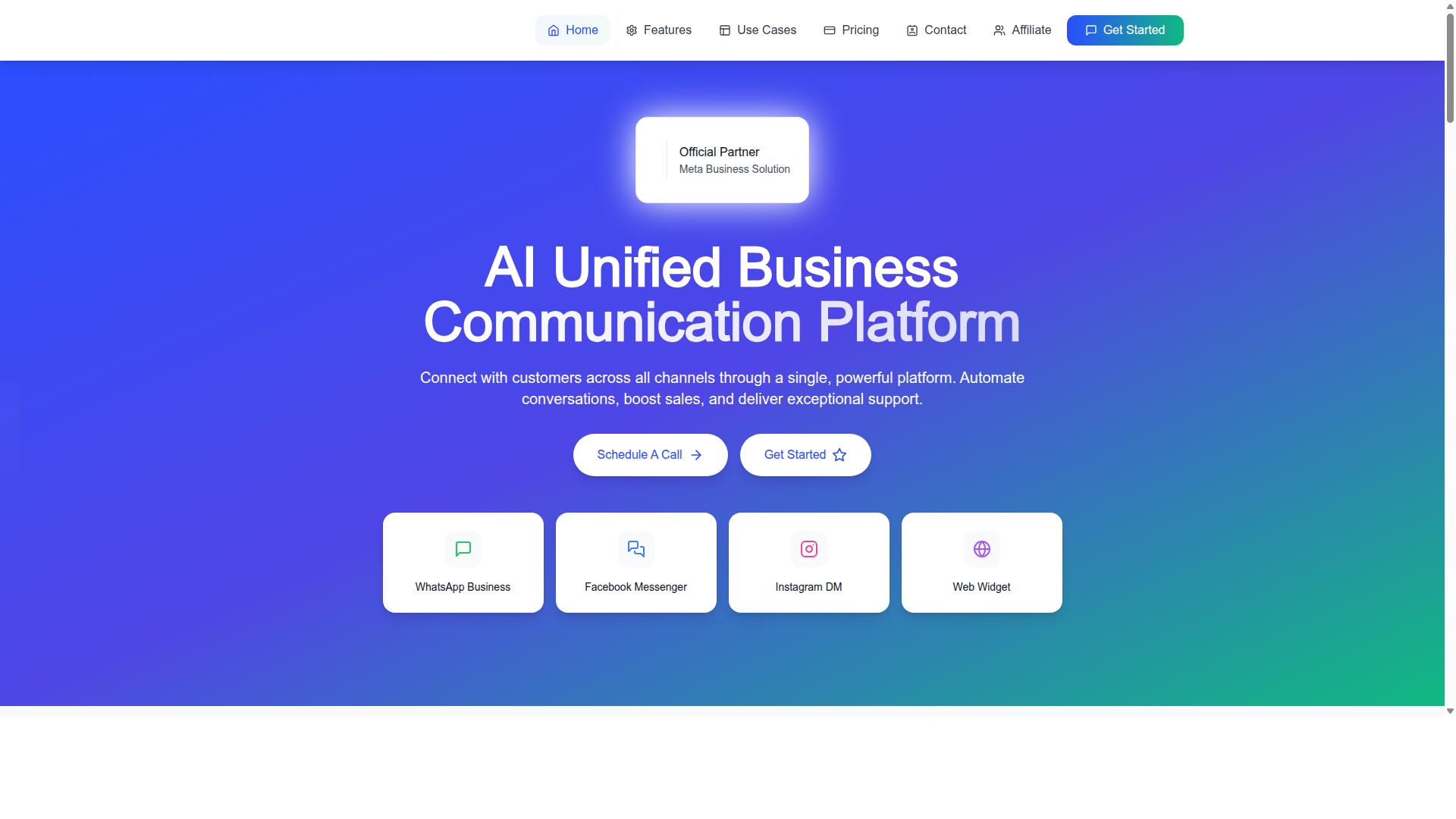
Com.bot's visual bot builder features a drag-and-drop interface that supports WhatsApp, Facebook Messenger, Instagram DM, and web widgets from a single platform. Instead of writing code for every branch of a conversation, teams assemble flows visually, which shortens the path from idea to a working bot.
The unified approach means one build serves multiple channels. A business can design a flow builder sequence once and deploy it across the channels its customers actually use, rather than maintaining separate bots for each surface.
Integrations extend what the bot can do beyond conversation. Com.bot offers:
- Native WhatsApp Business API integration for messaging at scale
- Native payments for WhatsApp transactions
- An automation builder with 1000+ integrations
- Multi-channel support across WhatsApp, Facebook, and Instagram
These connections matter for conversational commerce, where a customer might ask a question, receive an answer, and complete a purchase without leaving the chat. Payment collection and order updates fit naturally into that flow.
Com.bot is available in 50+ countries and reports proven scale: 25M+ messages per day, 23,000+ active customers, and 100+ government bodies relying on it. Enterprise security includes end-to-end encryption, and the platform covers bulk messaging, smart chatbots, notifications, customer support, and team collaboration with role-based access.
Its Meta Business Partner status supports reliable API access, which reduces one of the most common friction points in WhatsApp Business API adoption. For teams that want no-code automation without outgrowing their tool, that combination of reach and infrastructure is worth weighing during platform selection.
Common Setup Mistakes to Avoid
Avoid these frequent errors during WhatsApp Business API setup: using an incorrect business name, failing to secure access tokens, and neglecting the 24-hour messaging window. Each mistake can delay your launch, break your visual bot builder flows, or get your number flagged.
The good news is that every one of these problems has a straightforward fix. Most stem from skipping steps in Meta for Developers or rushing through business verification before the details are consistent.
Mismatched business information tops the list. If the legal name, address, or website on your Meta Business account does not match your official registration documents, business verification stalls. Review every field in WhatsApp Manager against your formal records before submitting. Update the display name so it clearly reflects your brand rather than an internal project label.
Reusing a phone number already tied to WhatsApp is another common trap. A number active on the consumer app or another Business API account cannot be registered again without first deleting that existing association. Use a fresh number dedicated to the API, or complete the migration steps inside WhatsApp Manager before attempting phone number registration.
- Hardcoded access tokens: Store tokens in environment variables or a secrets manager, never directly in your flow builder scripts or source code.
- Broken webhook configuration: Verify your callback URL, subscribe to the correct message fields, and confirm your endpoint returns a proper 200 response.
- Promotional sends outside the 24-hour window: Use only pre-approved message templates for marketing outside the session period.
Hardcoding access tokens makes rotation painful and exposes credentials if code is shared. A temporary token from the dashboard expires quickly, so generate a system user token for production. Environment variables keep secrets out of your repository and let you swap credentials without rebuilding your chatbot development setup.
Faulty webhook configuration is the quietest failure. If your endpoint does not verify correctly or misses subscription fields, incoming messages never reach your node-based editor. Test the webhook with sample payloads and log every delivery attempt. Missed events look like a broken bot when the real issue is a dropped callback.
Sending promotional messages outside the 24-hour window without approved templates triggers rejections and quality rating drops. Session messages only work while the customer window is open. For anything beyond that, submit template messages through WhatsApp Manager and wait for approval before your campaign goes live.
Finally, test thoroughly before going live. Run your drag-and-drop interface through real conversations, check interactive buttons, list messages, quick replies, and rich media messages. Confirm intent recognition and natural language processing handle typos and edge cases. A short staging period catches most of these setup errors before real customers ever see them.
Final Thoughts and Getting Started
To recap, a visual bot builder on the WhatsApp Business API enables you to automate conversations at scale without writing code. The path from idea to live bot follows a clear sequence: secure a Meta for Developers account, complete business verification, register a phone number, connect your chosen platform, and design flows with a drag-and-drop interface.
Each step matters, but the platform you pick shapes everything that follows. A well-built tool handles webhook configuration and access token management behind the scenes, so your energy goes into conversation design rather than infrastructure.
As you compare options, keep three criteria front and center:
- Visual builder quality: Look for a true drag-and-drop interface or node-based editor where you can see the entire conversation flow at a glance. The best tools make branching logic, quick replies, and interactive buttons easy to map without touching code.
- Official Meta partner status: A verified partner gives you a reliable bridge to the Cloud API, smoother API integration, and fewer surprises when Meta updates its policies or platform requirements.
- Transparent pricing: Understand what you pay for platform access versus what Meta charges for conversations. Clear pricing lets you forecast costs as your message volume grows.
Beyond these three, think about the features your use case demands. If you plan to run conversational commerce, check how the platform handles rich media messages, list messages, and message templates. If intent recognition or natural language processing is on your roadmap, confirm those capabilities exist before you commit.
One practical step that saves time later: map your first bot on paper before opening any builder. Sketch the entry point, the main menu, three to five common customer questions, and the handoff path to a human agent. This small exercise turns a blank canvas into a straightforward build.
Start with a free trial or a live demo whenever one is available. Trials let you test the flow builder, publish a sandbox bot, and confirm the interface matches how your team thinks. A demo also gives you the chance to ask about the 24-hour window, session messages versus template messages, and how automated responses behave outside that window.
Keep your first bot deliberately small. Launch with a welcome flow, a handful of automated responses, and one escalation route. Once that runs smoothly, expand into richer flows. This staged approach keeps chatbot development manageable and makes it easier to spot what needs tuning.
If you are ready to explore Com.bot, here is how to reach the team:
- Head Office: 501, Trinity Orion, Vesu Main Road, Surat - 395010, IN
- Phone/WhatsApp: +91 080 6987 1810
- Email: [email protected]
- Business Hours: Monday - Friday: 9:00 AM - 6:00 PM IST
- Social: WhatsApp Support available
WhatsApp support is a fitting channel for a WhatsApp-focused product, and it lets you experience the medium from the customer's side while you plan your own build.
The broader shift toward conversational commerce rewards businesses that move early. Customers increasingly expect instant answers, and a visual bot builder paired with the WhatsApp Business Platform delivers exactly that, without a development team. Choose your platform carefully, start small, and let real conversations guide your next iteration.
Recommended Resources: